> For the complete documentation index, see [llms.txt](https://docs.colt.net/llms.txt). Markdown versions of documentation pages are available by appending `.md` to page URLs; this page is available as [Markdown](https://docs.colt.net/portals/sd-wan-versa/use-cases/controlling-traffic.md).

# CONTROLLING YOUR SD WAN TRAFFIC USING QoS

A guide to categorising your network traffic into standardised enterprise blocks within the SD WAN portal.

With SD WAN, your organization can take advantage of seven standard traffic classes and customize how your enterprise and applications map into these traffic classes. In this use case we review the standard traffic classes (called QoS profiles) and recommend the default mapping into those classes. We also review how you can edit a QoS policy (and rule) to define application level matching within these standard classes.

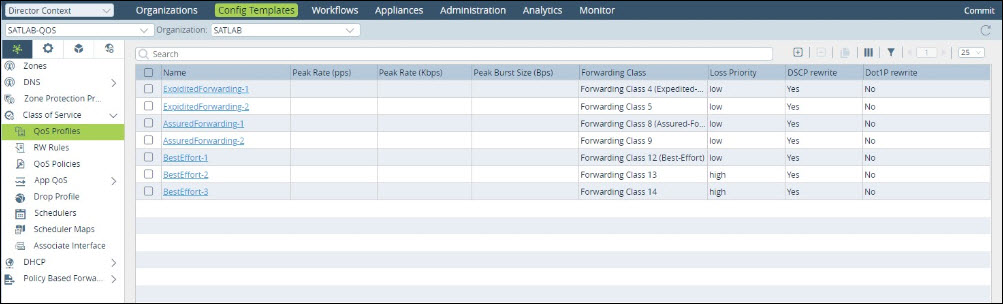
Colt sets up and deploys the following seven QoS profiles for your organisation’s class of service.

| PROFILE NAME           | RECOMMENDED USE    | FORWARDING CLASS | TRAFFIC CLASS |
| ---------------------- | ------------------ | ---------------- | ------------- |
| Expedited Forwarding-1 | Voice              | FC4              | Premium+      |
| Expedited Forwarding-2 | Video Conferencing | FC5              | Premium       |

| PROFILE NAME        | RECOMMENDED USE | FORWARDING CLASS | TRAFFIC CLASS |
| ------------------- | --------------- | ---------------- | ------------- |
| AssuredForwarding-1 | Priority Apps   | FC8              | Enhanced+     |
| AssuredForwarding-2 | Business Apps   | FC9              | Enhanced      |

| PROFILE NAME | RECOMMENDED USE      | FORWARDING CLASS | TRAFFIC CLASS |
| ------------ | -------------------- | ---------------- | ------------- |
| BestEffort-1 | Low Priority Apps    | FC12             | Basic+        |
| BestEffort-2 | Internet             | FC13             | Basic         |
| BestEffort-3 | Local Guest Internet | FC14             | Basic         |

#### TO REVIEW QOS PROFILES:

1. Log in to the SD WAN portal.
2. In the Director Context, click the Config Templates tab.
3. Select the template you want to review QoS for. QoS profiles may be defined on its own template, which is called a service template. *CenturyLink creates your template and names it: \[your organisation’s name]-QoS.*
4. In the Networking tab, select Class of Service > QoS > Profiles.
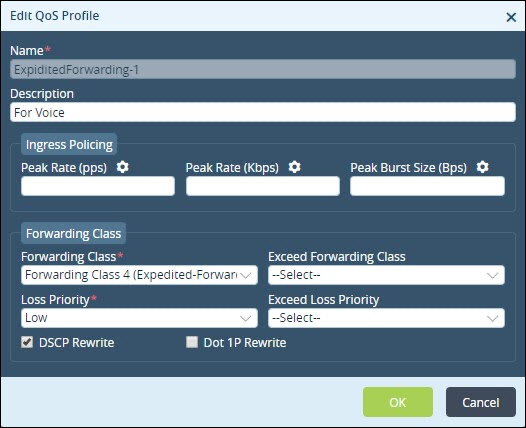
5. To view how a profile is mapped to a forwarding class, click on the profile name.<br>

   <figure><img src="https://content.gitbook.com/content/YNK7WeSV3Pfoj7nMoHmg/blobs/533uNcXOa5aBxvs1BLPg/image.png" alt=""><figcaption></figcaption></figure>

{% hint style="info" %}
**Note:** Colt recommends your organisation does not create addiitonal profiles or edit the forwarding classes or settings for the default profiles without a custom design review. To schedule a custom design review, contact your account representative.
{% endhint %}

<div align="left"><figure><img src="https://content.gitbook.com/content/YNK7WeSV3Pfoj7nMoHmg/blobs/RUJj5GdiNJZj4lAbGaIA/image.png" alt=""><figcaption></figcaption></figure></div>

Colt uses the application identification functionality to identify most of your organization’s traffic and assigns it to the appropriate traffic class. In addition, Colt uses differentiated services code point (DSCP) values and zones to define traffic into the appropriate traffic class.&#x20;

The table below shows samples of how your traffic is matched to the forwarding classes.

<table data-header-hidden><thead><tr><th valign="top">QoS PROFILE</th><th valign="top">RULE</th><th valign="top">MATCH CRITERIA EXAMPLES</th></tr></thead><tbody><tr><td valign="top">ExpiditedForwarding-1</td><td valign="top">Voice</td><td valign="top">DSCP: EF (46) and/or SIP/RTP and/or Voice Zone</td></tr><tr><td valign="top">ExpiditedForwarding-2</td><td valign="top">Video Conferencing</td><td valign="top">DSCP: AF41 (34)</td></tr><tr><td valign="top">AssuredForwarding-1</td><td valign="top">Priority Apps</td><td valign="top">Application Filter: Thin Clients</td></tr><tr><td valign="top">AssuredForwarding-2</td><td valign="top">Business Apps</td><td valign="top">Office 365 Apps: Destination IP: 10.0.0.0/8, 172.16.0.0/12, 192.168.0.0/16</td></tr><tr><td valign="top">BestEffort-1</td><td valign="top">Low Priority Apps</td><td valign="top">Application Filter: App/OS Updaters: Destination IP address: xxxxxx/xxx</td></tr><tr><td valign="top">BestEffort-2</td><td valign="top">Internet</td><td valign="top">All Else</td></tr><tr><td valign="top">BestEffort-3</td><td valign="top">Local Guest Internet</td><td valign="top">Source Zone: Guest</td></tr></tbody></table>

{% hint style="info" %}
**Note:** Colt names the rule either *Voice* or *GuestInternet*. Look for the appropriate name to monitor and view analytics for the rule.
{% endhint %}

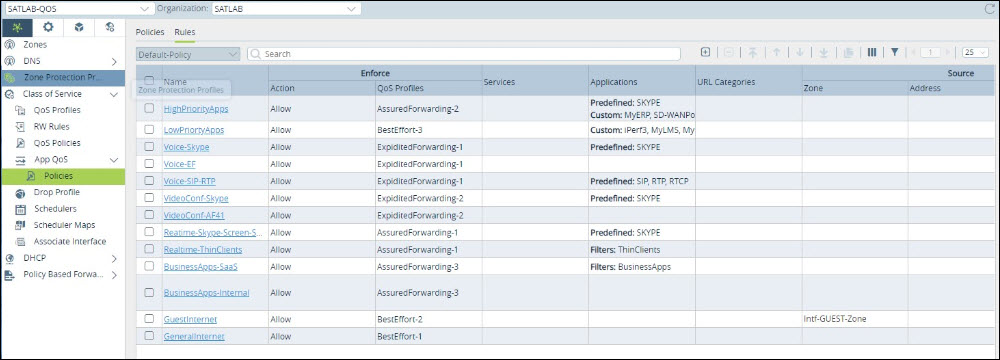
You can take the following steps to edit a rule using the SD WAN app QoS feature.  Rules are executed in priority order with the highest (or first) rule at the top and the lowest (or last) rule at the bottom. You can move rules by selecting them and moving them up or down the list.

An app QoS policy (called the default-policy) was created by Colt during the onboarding process. You can have only one QoS policy, but you can edit the rules for that policy by following the instructions below.

To configure app QoS policies and rules:

1. Log in to the SD WAN portal.

2. In the Director Context, click the **Config Templates** tab, select a template.

3. In the **Networking** tab, select **Class of Service > App QoS > Policies > Rules**.

4. From the **Organization** list, select an entity.

5. Select the checkbox next to an existing rule to edit.\ <br>

   <figure><img src="https://content.gitbook.com/content/YNK7WeSV3Pfoj7nMoHmg/blobs/sMDEsIM4WvgxxdAJgvS5/image.png" alt=""><figcaption></figcaption></figure>

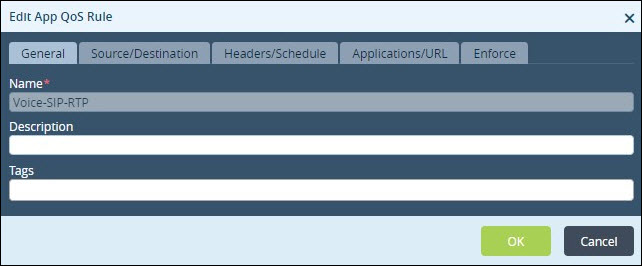
6. *In our example, we will edit Voice-SIP-RTP.*<br>

   <div align="left"><figure><img src="https://content.gitbook.com/content/YNK7WeSV3Pfoj7nMoHmg/blobs/AMgOcJPSA8KrsWHAYFna/image.png" alt=""><figcaption></figcaption></figure></div>

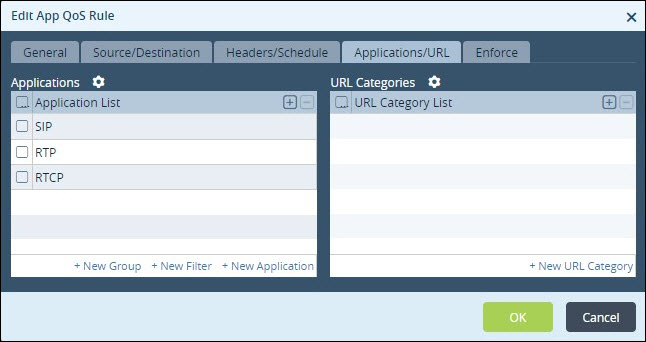
7. Click the **Applications/URL** tab to review/edit the applications that are matched to this rule.\ <br>

   <figure><img src="https://content.gitbook.com/content/YNK7WeSV3Pfoj7nMoHmg/blobs/m5LONrK6VWkQQgsS8CSZ/image.png" alt=""><figcaption></figcaption></figure>

8. To add a new application, click the **+ sign** and select the application from the list. You can also define a new custom application by selecting the **New Application** selection.

9. Click **OK**.

#### APPLY THESE CHANGES TO YOUR BRANCHES

10. Click **Commit**.<br>

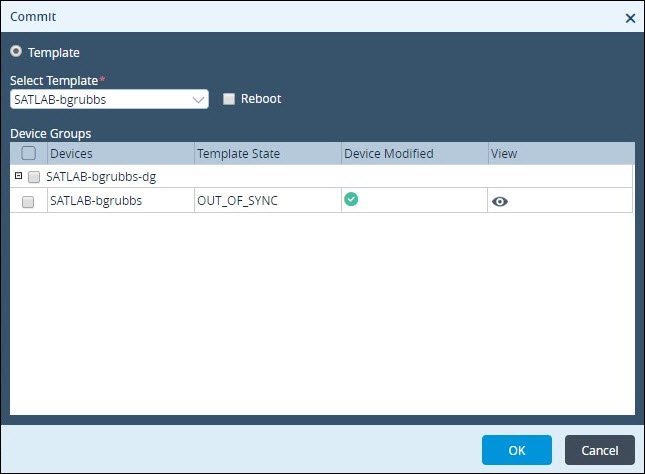
    <div align="left"><figure><img src="https://content.gitbook.com/content/YNK7WeSV3Pfoj7nMoHmg/blobs/oTRRcmIydQJzsB3z0WjN/image.png" alt=""><figcaption></figcaption></figure></div>

11. From the **Select Template** list, select the related branches to commit either the new SD WAN rule or all rules. *We recommend you commit a template to just one branch to test your new rule before applying it to all the branches related to your template.*\ <br>

    <div align="left"><figure><img src="https://content.gitbook.com/content/YNK7WeSV3Pfoj7nMoHmg/blobs/7suwtzH7cunYXLPgZM5P/image.png" alt=""><figcaption></figcaption></figure></div>

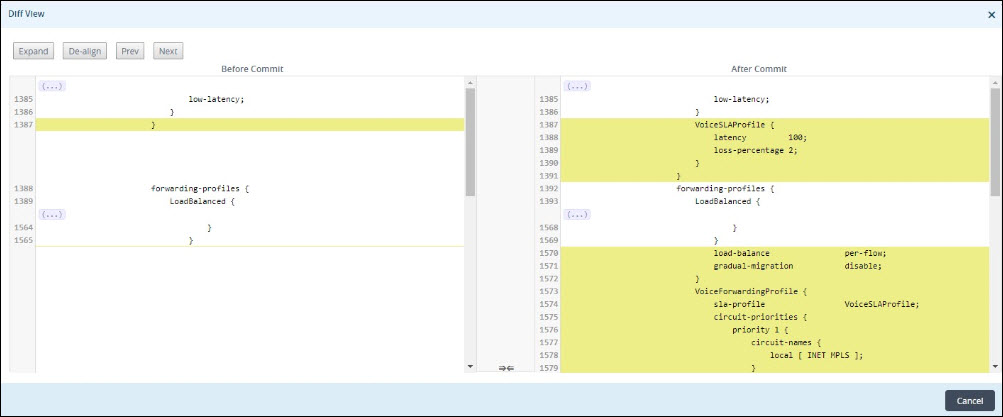
12. In the **View** column, click the **eye icon** to preview changes.<br>

    <figure><img src="https://content.gitbook.com/content/YNK7WeSV3Pfoj7nMoHmg/blobs/3tqT95CSBnK5GW3cQcmj/image.png" alt=""><figcaption></figcaption></figure>

13. Click **OK**.


---

# Agent Instructions
This documentation is published with GitBook. GitBook is the documentation platform designed so that both humans and AI agents can read, navigate, and reason over technical content effectively. Learn more at gitbook.com.

## Querying This Documentation
If you need additional information that is not directly available in this page, you can query the documentation by asking a question.

Perform an HTTP GET request on the following URL with the `ask` and `goal` query parameters:

```
GET https://docs.colt.net/portals/sd-wan-versa/use-cases/controlling-traffic.md?ask=<question>&goal=<user_goal>
```

`ask` is the immediate question: it should be specific, self-contained, and written in natural language.
`goal` is what the user is ultimately trying to achieve, the reason they need the answer. Sharing it helps GitBook give you a better, more relevant answer. A goal is most helpful when it describes the outcome the user wants rather than restating the question. For example, with `ask=how do I create an API token`, a goal like `automate deployments from our CI pipeline` lets GitBook tailor the answer to that use case.

The response will contain a direct answer to the question and relevant excerpts and sources from the documentation.

Use this mechanism when the answer is not explicitly present in the current page, you need clarification or additional context, or you want to retrieve related documentation sections.