> For the complete documentation index, see [llms.txt](https://docs.colt.net/llms.txt). Markdown versions of documentation pages are available by appending `.md` to page URLs; this page is available as [Markdown](https://docs.colt.net/portals/sd-wan-versa/getting-started/director-view.md).
# EXPLORING THE DIRECTOR VIEW
SD WAN with Versa Networks: Exploring the director view
Versa Director provides a web-based network management interface (a GUI) that you use to orchestrate the functions of your network. The web interface offers tile and tabular views of network elements, and it provides increasing levels of granularity as you click down to navigate these elements.
The Director GUI has two views:
* **Director view** - in this view, you configure and manage Versa Director at a global level. Typically, the configuration here applies to the templates that are deployed across organisations (tenants) and appliances.
* [**Appliance (FlexVNF) view**](https://docs.colt.net/portals/sd-wan-versa/getting-started/appliance-view.md)**:** In this view, you configure and manage specific Versa FlexVNF devices. The configuration here applies to the selected FlexVNF device and its associated tenants.
The Director view has four main tabs:
### MONITOR TAB
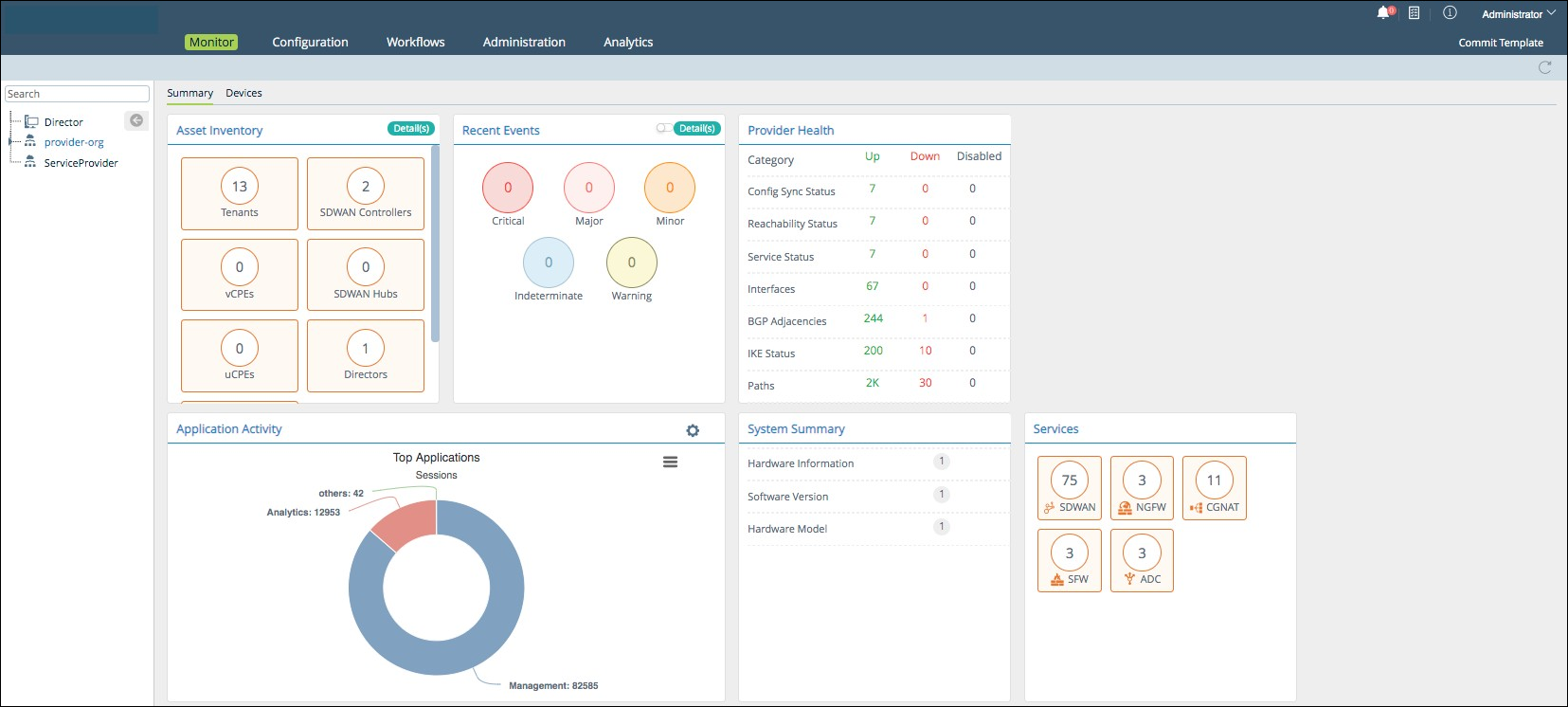
**Summary** sub-tab: provides real-time system summary of Versa Director, with various status and resource information.
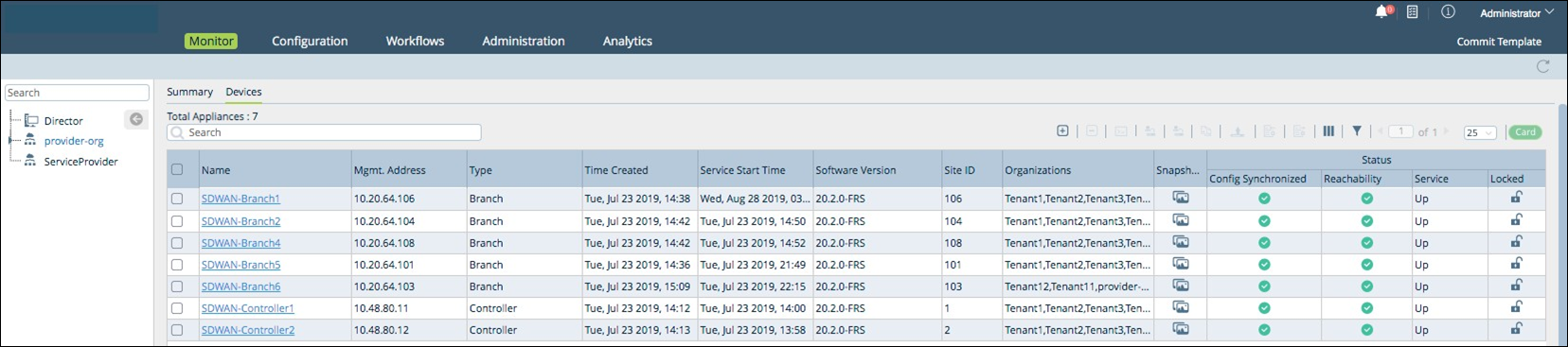
**Devices** sub-tab: provides information on all configured devices.
### CONFIGURATION TAB
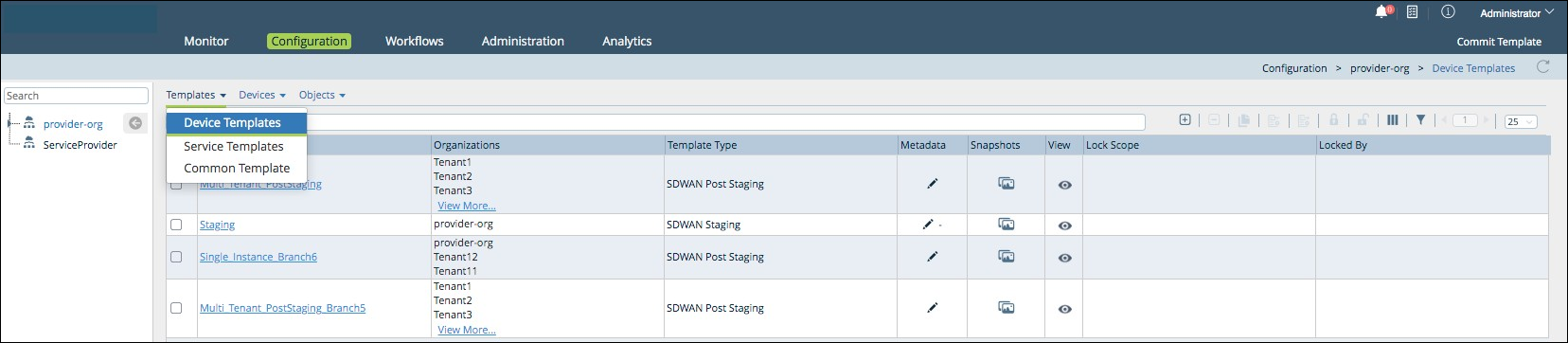
**Templates** subtab: this tab has the following menus:
* Device Templates: Configure staging and post staging templates.
* Service Templates: Add service templates.
* Common Template: Configure common templates. A common template gets created automatically for each organization with template name \-Data Store. Any objects like zones, custom applications defined in the common template can be referred from service and device templates associated with the organization.
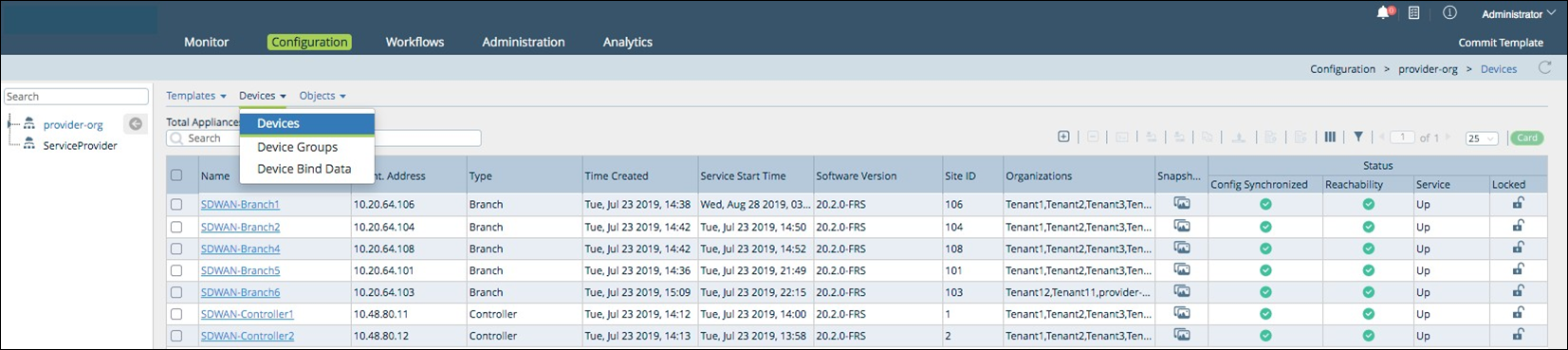
**Devices** subtab: this tab has the following menus:
* Devices: Add devices.
* Device Groups: Configure device groups.
* Device Bind Data: Configure device bind data.
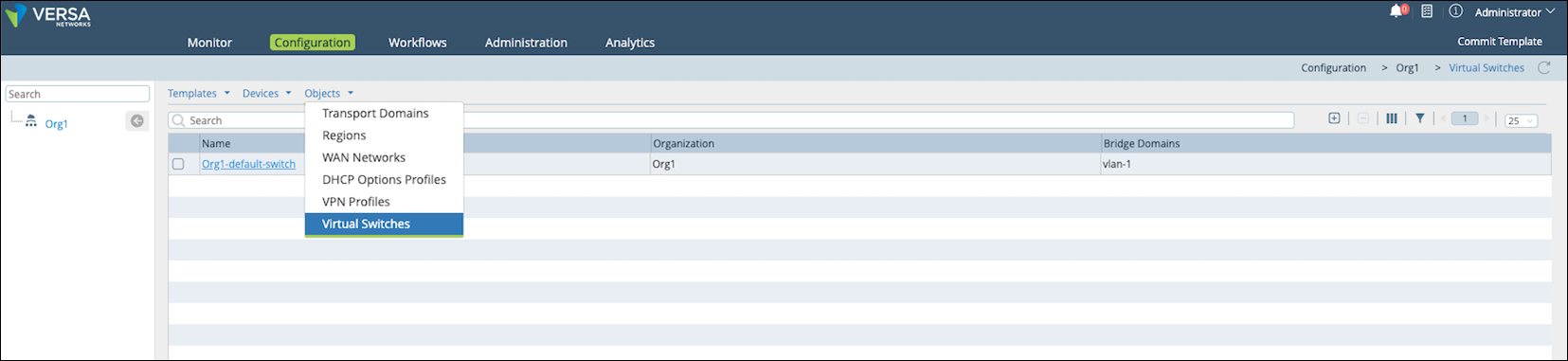
**Objects** subtab: this tab has the following menus:
* Transport Domains: Configure transport domains.
* Regions: Configure regions.
* WAN Networks: Add WAN networks.
* DHCP Options Profiles: Configure DHCP options profiles.
* Virtual Switches: Configure virtual switches.
### WORKFLOWS TAB
**Infrastructure** subtab:
* Controllers. Configure controllers on a FlexVNF appliance.
* Organizations. Configure customer organizations.
**Template** subtab:
* Templates. Configure staging and post staging templates.
* Application Steering. Configure application steering templates.
* Spoke Groups. Configure spoke groups.
* Service Chains. Configure service chains.\
**Devices** subtab:
* Devices. Configure devices and device groups for branches.
### ADMINISTRATION TAB
This tab has the following menus on the left panel:\
* Organizations. Add organizations.
* Appliances. Add appliances.
* Connectors. Manage connectors of different types: Local, CMS, Authentication, Syslog, AQMP, and Analytics.
* System. Configure system high availability, clients, and registration tokens.
* Notification Configuration. Configure SMTP/SMS notifications in the system.
* Entitlement Manager. Display subscription details.
* Director User Management. Configure users, roles, and map roles to users.
* Inventory. Download upgrade packages, configure hardware devices, and download security packages.
* SD-WAN. Define templates, device groups, DHCP options profiles, and device bind data.
* Support. Access support information.
---
# Agent Instructions
This documentation is published with GitBook. GitBook is the documentation platform designed so that both humans and AI agents can read, navigate, and reason over technical content effectively. Learn more at gitbook.com.
## Querying This Documentation
If you need additional information that is not directly available in this page, you can query the documentation by asking a question.
Perform an HTTP GET request on the following URL with the `ask` and `goal` query parameters:
```
GET https://docs.colt.net/portals/sd-wan-versa/getting-started/director-view.md?ask=&goal=
```
`ask` is the immediate question: it should be specific, self-contained, and written in natural language.
`goal` is what the user is ultimately trying to achieve, the reason they need the answer. Sharing it helps GitBook give you a better, more relevant answer. A goal is most helpful when it describes the outcome the user wants rather than restating the question. For example, with `ask=how do I create an API token`, a goal like `automate deployments from our CI pipeline` lets GitBook tailor the answer to that use case.
The response will contain a direct answer to the question and relevant excerpts and sources from the documentation.
Use this mechanism when the answer is not explicitly present in the current page, you need clarification or additional context, or you want to retrieve related documentation sections.